The transfer log is the documentation of your data deliveries which our press database has registered. Here you can transparently track the status of your delivery (import).
You can filter the results table so that you can find the data delivery in question straight away.
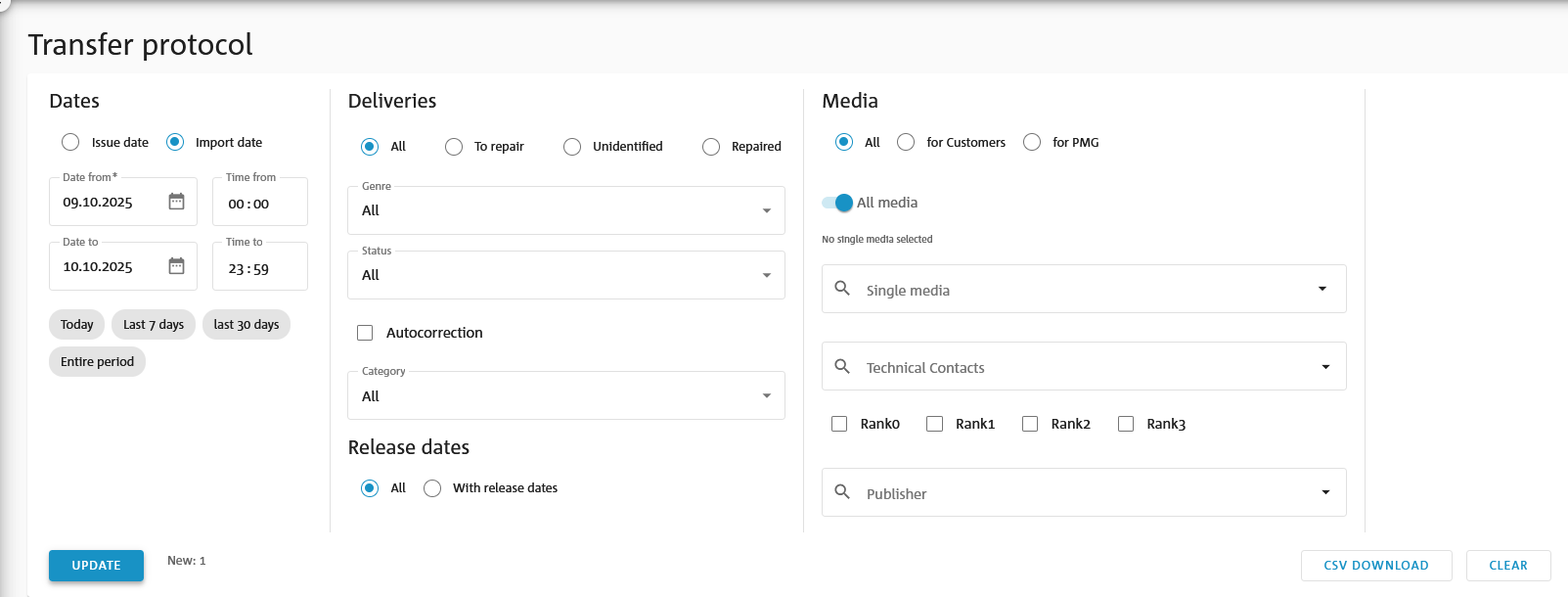
Filter
The transfer log can be narrowed down individually to specific deliveries. To do this, use the filters under “Dates”, “Deliveries”, “Release dates” and “Media”.
Dates
You have the option of filtering by the publication date of an issue or the date of receipt of the delivery. Predefined quick filters (e.g. “Today”) are also available, which you can use for the publication date or the date of receipt of the delivery.
Deliveries
In some cases, deliveries must be manually repaired by our Quality Management team before they can be released to customers. These can be identified via the filter “Deliveries to repair” or “Repaired”. If our press database cannot identify your delivery, for instance because the publication is unknown, it can be displayed using the filter “Not identified”.
After your delivery has been imported and checked by the system, it is assigned a status, which you can also use to filter the transfer log. An explanation of the statuses can be found in the “Status message” section. Depending on the status of your delivery, it is additionally categorised to provide you with further information about the status. You can therefore display your deliveries by category. By selecting “Auto-correction”, you can see which deliveries were automatically corrected during the check.
Release date
To ensure that a data delivery is only available to customers at a time specified by you after successful import, you can specify a release date within your data delivery. You can obtain an overview of your data deliveries with release dates by selecting the corresponding filter.
Media
During the initial and manual verification of your data delivery by our Quality Management team or in the event of significant quality defects, your data is not accessible to customers, but only to our employees. You can obtain an overview of such data deliveries by selecting the filter “For PMG only”. Conversely, the filter “For customers” shows you all data deliveries that are available to customers. You can also restrict the transfer log to a selection of publications or publications from a certain publisher if you are supplying data for several publishers.
Results table
The results table shows you the deliveries according to your filter selection. Each delivery is evaluated by our press database according to the following information:
Import: When the import started
Online: When the delivery is available via the PMG press database. If you have specified a release date in the delivery, this is marked with FGD.
Delivery status: For more details, please refer to Status message.
Media: The title of the source. If the data you have provided is converted, this is marked with IK (internal conversion = PMG) and EK (external conversion = supplier company).
 | Number of articles in the delivery. If the source enables update deliveries, this number may differ from the number of new articles in the delivery. |
 | Number of articles that you provided for the first time with this delivery. If the source enables update deliveries, this number may differ from the number of articles in the delivery. |
 | Number of articles that you updated with this delivery. This is only possible if the source enables update deliveries. |
 | Total of all unique articles from all deliveries for an issue. |
 | Number of original layouts you have provided with this delivery. This is compared with the total number of all original layouts delivered for the issue, as denoted by the number after the slash. |
 | Number of full pages you have provided with this delivery. This is compared with the total number of all full pages delivered for the issue, as denoted by the number after the slash. |
 | Number of photos you have provided with this delivery in the XML element <photo>. This is compared with the total number of photos delivered for the issue, as denoted by the number after the slash. |
 | Number of info graphics you have provided with this delivery. This is compared with the total number of info graphics delivered for the issue, as denoted by the number after the slash. |
File size: Size of the delivery in kilobytes
File name: Name of the delivery. Clicking on the file name starts the download of the delivery. Downloads are generally only possible within the retention period of 65 days from the import or release date.
Status notification
The transfer log informs you about the status of the import of your (update) delivery. You can also set up an automatic email notification for the status of the import (please contact our Quality Management team for this). This allows you to access the transfer log via an embedded link.
There are seven different statuses. Clicking on the status icon opens the import log for the selected delivery.
 | OK: The delivery complies with the specifications in the supplier manual for delivery to the PMG press database. |
 | Updated: The update delivery to the PMG press database, for an initial delivery that has already been successfully imported, has also been successfully imported. |
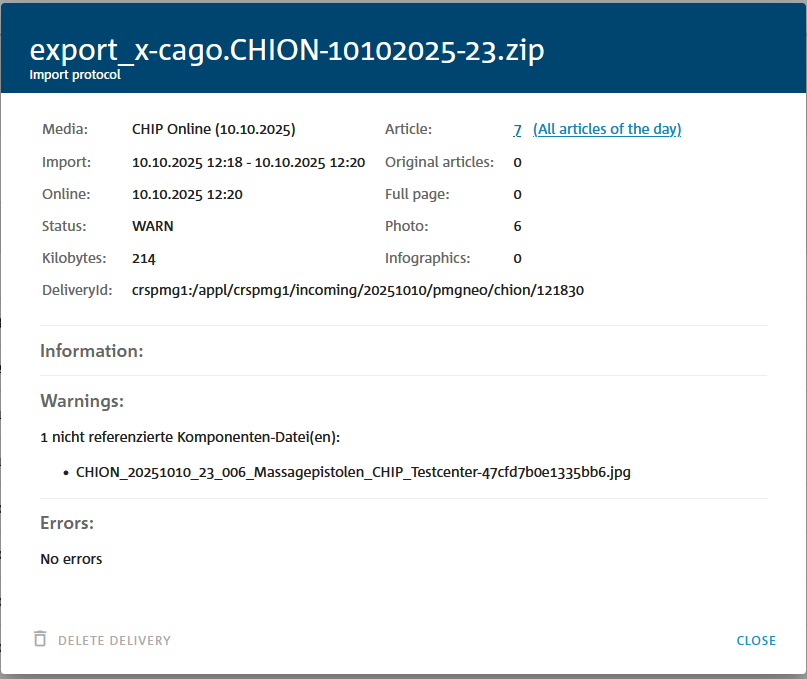
 | Warning: The delivery complies with the specifications in the supplier manual for delivery to the PMG press database, however minor errors have occurred. For example, a photo supplied that was not referenced in the XML file. Despite these minor errors, the import was successful. |
 | Error: The delivery does not comply with the specifications in the supplier manual for delivery to the PMG press database and could not be imported. Errors have occurred that prevent a successful import. For example, failure to comply with the DDMMYYYY date format in the file name (e.g. 1002-bil-011032023.zip). |
 | Ignored: The import of the delivery was ignored by the PMG press database because a delivery for the source with the same file name has already been imported. |
 | Processing in progress: The import has not yet been completed. |
 | Deleted: The data delivery was deleted by Quality Management. This status is not assigned if a data delivery is automatically deleted after the retention period has expired. |
Import log
You can open the import log for a delivery by clicking on the status icon. In addition to the entries in the transfer log, you will see further information about the import and its status. You can also view the supplied articles and article components in the article search by clicking on the article links.
Was this article helpful?
That’s Great!
Thank you for your feedback
Sorry! We couldn't be helpful
Thank you for your feedback
Feedback sent
We appreciate your effort and will try to fix the article